
i3D Workbench · Input tool Available
NC Viewer
Visualize G-code toolpaths in 3D before sending them to a machine.
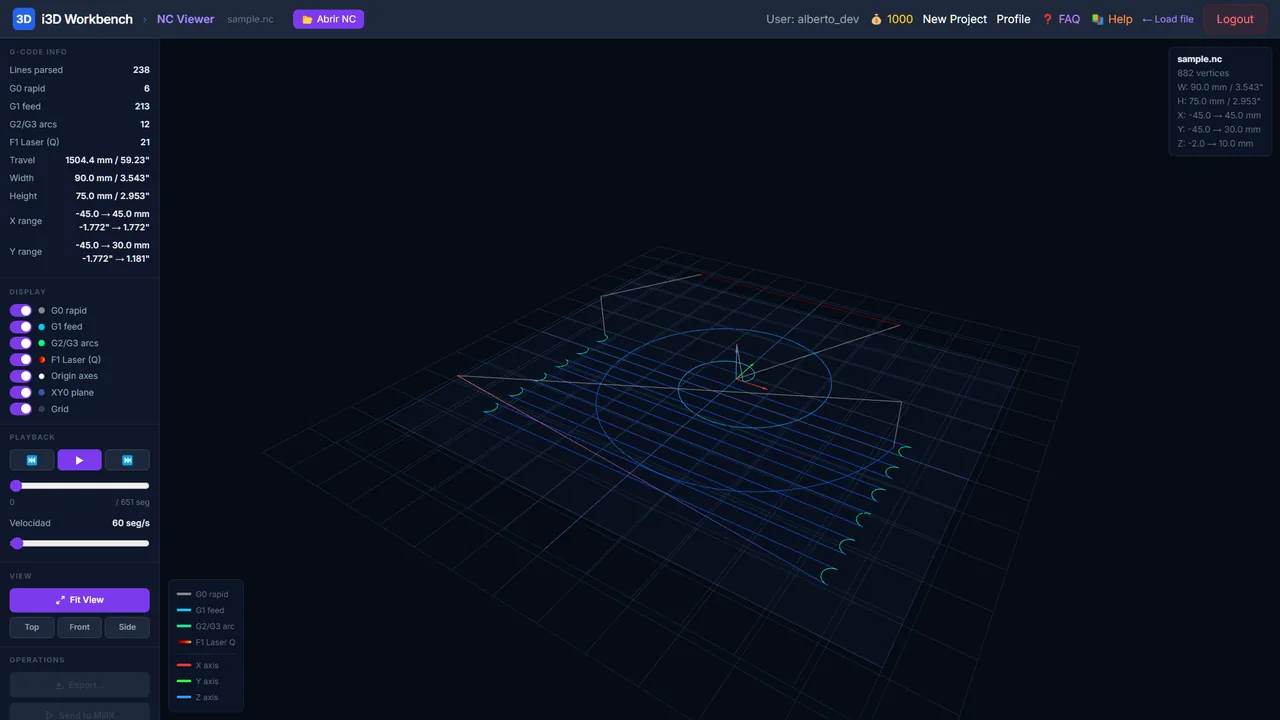
NC Viewer is a browser-based G-code viewer: it opens .nc, .gcode, .g00 and .txt programs, draws the toolpath in 3D with colour-coded rapid (G0), feed (G1), arc (G2/G3) and laser-power (Q) moves, reports lines parsed, travel length and X/Y ranges, and replays the program segment by segment at 1–5000 segments per second.
| Group | Input |
|---|---|
| Status | Available |
| Input | .nc, .gcode, .g00, .txt |
| Max upload | 300 MB per file |
| Runs in | Desktop browser with WebGL 2 (Chrome, Edge, Firefox) — computation on Ahaborg's C++ backend |
| Billing | Pay-per-use credits, no subscription |
| Documented in | i3D Workbench User & Reference Manual v2026.10 |
Overview
Open a G-code file and inspect the toolpath as a 3D line drawing: rapid moves, feed moves, arcs and laser-power segments are color-coded. Useful to sanity-check output from MillX, LaserX, OtkMaster or any external CAM. Accepts .nc, .gcode, .g00 and .txt files.
Step by step
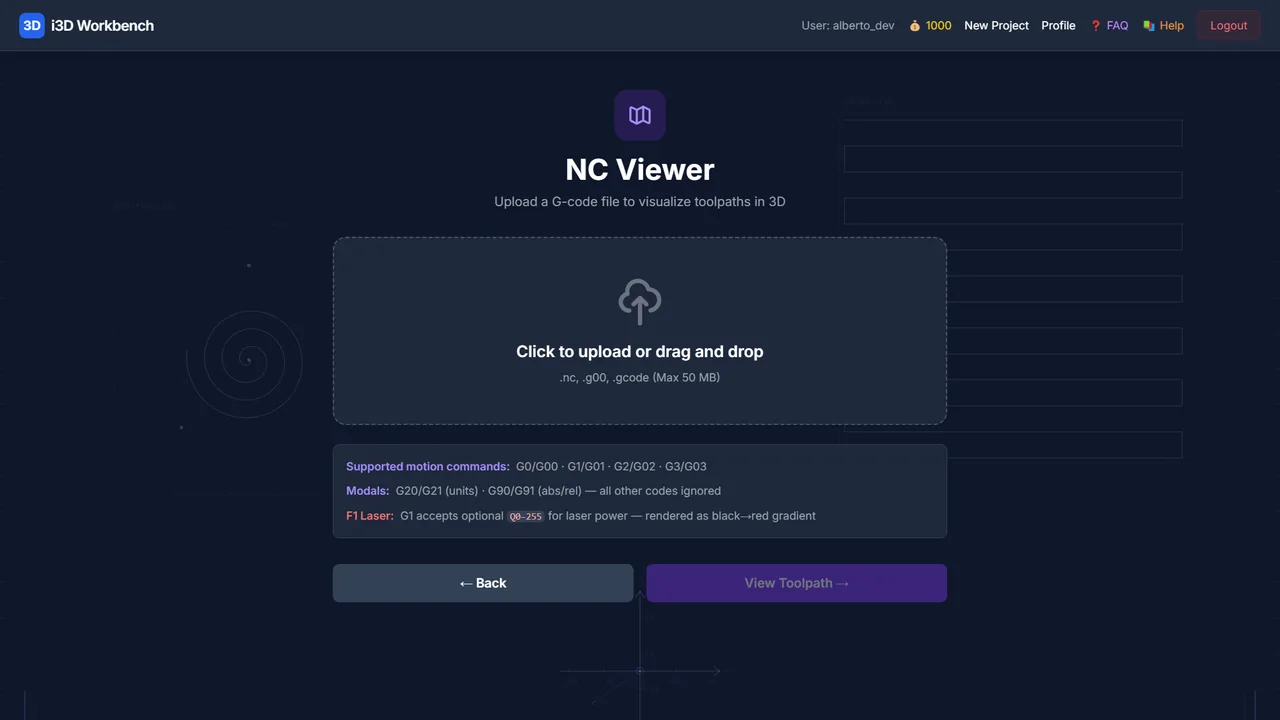
- Open NC Viewer from Select Mode. The upload page appears.
- Click the drop zone (or drag a file onto it) and pick the G-code file. Click Process.
- The viewer opens. Orbit with the left mouse button, pan with the right button, zoom with the wheel. Use Top / Front / Side for standard views.
- Read the statistics panel: lines parsed, travel length, width/height and X/Y ranges of the program.
- Toggle the Display checkboxes to isolate move types (hide G0 to see only cutting moves, for example).
- Press ▶ to replay the program segment by segment; use the progress slider to scrub and the speed slider to slow down.
Controls
Opening a file
| Control | Range / values | Default | What it does |
|---|---|---|---|
| Open NC file | — | — | Loads a G-code file (also available inside the viewer with the file button). Orbit with the left mouse, pan with the right/middle mouse, zoom with the wheel. |
Statistics
| Control | Range / values | Default | What it does |
|---|---|---|---|
| Lines parsed | — | — | Number of G-code lines understood by the parser. |
| Travel | — | — | Total length of all moves (rapid + feed). |
| Width / Height / X range / Y range | — | — | Bounding box of the toolpath in program units. |
Display toggles
Each move type can be shown or hidden independently with its color swatch:
- G0 rapid — non-cutting rapid moves (gray)
- G1 feed — linear cutting/feed moves, colored by height (blue = low → red = high) for 3D paths; flat cyan for planar 2D paths
- G2/G3 arcs — clockwise / counter-clockwise circular moves, colored by height (flat green for planar paths)
- F1 Laser (Q) — segments colored by laser power (the
Qvalue), dark → bright - Origin axes — XYZ axis indicator at the machine origin
- XY0 plane — translucent reference plane at Z = 0
- Grid — ground grid
Playback
Replays the toolpath segment by segment, in G-code execution order. While playing, the static toolpath is hidden and the path is drawn progressively with the same color scheme, with a yellow marker tracking the current tool position.
| Control | Range / values | Default | What it does |
|---|---|---|---|
| ⏮ Go to start | — | — | Jump to the beginning (empty path). |
| ▶ / ⏸ Play / Pause | — | — | Start or pause the replay; pressing play at the end restarts from the beginning. |
| ⏭ Go to end | — | — | Jump to the end (full path drawn). |
| Progress slider | — | — | Scrub to any point in the toolpath; shows the current segment number and total. |
| Speed slider | 1 – 5000 seg/s | 60 | Playback speed in segments per second. Set it low (1–5) to watch the trajectory line by line. |
Actions
| Control | Range / values | Default | What it does |
|---|---|---|---|
| Export… / Send to MillX | — | — | Reserved for a future release — currently disabled. |
Tips & tricks — NC Viewer
- Hide G0 rapid first: the cutting path alone tells you immediately whether the strategy (raster, spiral…) is what you expected.
- Toggling any Display checkbox exits playback and restores the full toolpath — use that as a quick “stop and show everything”.
- Height coloring is relative to the program: a fully blue path means a planar job; a rainbow means Z varies. A single red spike usually marks a wrong retract height.
- Check the X/Y range against your machine travel and stock size before every run — this catches wrong units (mm vs inch) in seconds.
- For laser files the Q brightness shows the power map; an almost uniformly bright path means the Min/Max power window was too narrow.
Troubleshooting
Lines parsed is much lower than the file length.
Lines the parser does not understand (macros, comments, unsupported codes) are skipped. Only G0/G1/G2/G3 moves and laser Q values are drawn.
Arcs look like straight lines.
Arcs are tessellated; very large radii with tiny angles may look straight. The path geometry is still correct.
Works well with
Tools that chain with NC Viewer — see the workflows.